Select Version of EA Desktop:
In Related Records, files that appear in the Grid with a Scanned status are available for viewing in SEG-Y SnapShot. To scan files with a Not Scanned status, or to re-scan files marked as missing data or navigation, select the files in the grid and click Open Selected. With the items open in the File module, refer to Adding files to SEG-Y Scan
To view files in SEG-Y SnapShot:
-
Use one of the following methods to select Scanned files for viewing:
- Click to select one row in the Grid grid.
- To select multiple individual rows, press Ctrl while clicking to select.
- To select multiple consecutive rows, click and drag in the leader column in the grid.
-
Right-click on a selected row and select SEG-Y SnapShot in the context menu.
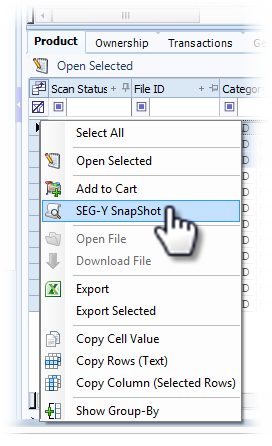
The SEG-Y SnapShot window opens.
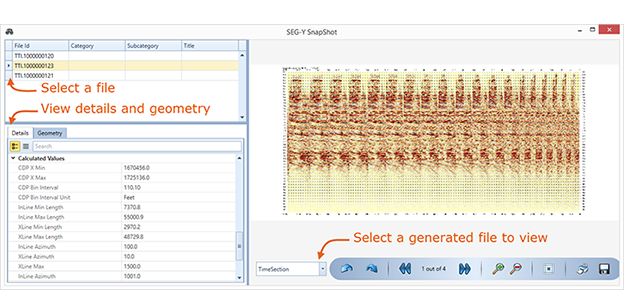
The grid in the upper left displays the files you selected for viewing. Click to select a file to view.
The lower left grid displays the Details tab and the Geometry tab. Click a tab to view the associated information.
The panel on the right displays the generated snapshot files:
- Time Slice
- Live Trace Outline
- Time Section
- EBCDIC
- Report
Click the drop-down to select a snapshot view. Use the navigation bar to browse, print or save the files.
In Related Records, files that appear in the Grid with a Scanned status are available for viewing in SEG-Y SnapShot. To scan files with a Not Scanned status, or to re-scan files marked as missing data or navigation, select the files in the grid and click Open Selected. With the items open in the File module, refer to Adding files to SEG-Y Scan
The "snapshots" of your SEG-Y are compressed replicas for a quick view of time slices, live trace outline, time section and the EBCDIC header detail.
To view files in SEG-Y SnapShot:
-
To locate SEG-Y files in the Grid grid, use the filter row of the Location column and enter ".sgy".
-
Use one of the following methods to select Scanned files for viewing:
- Click to select one row in the Grid grid.
- To select multiple individual rows, press Ctrl while clicking to select.
- To select multiple consecutive rows, click and drag in the leader column in the grid.
-
Right-click on a selected row and select SEG-Y SnapShot in the context menu.
The SEG-Y SnapShot window opens.
The grid in the upper left displays the files you selected for viewing. Click to select a file to view.
The lower left grid displays the Details tab and the Geometry tab. Click a tab to view the associated information.
The panel on the right displays the generated snapshot files:
- Time Slice
- Live Trace Outline
- Time Section
- EBCDIC
- Report
Click the drop-down to select a snapshot view. Use the navigation bar to browse, print or save the files.